Start Your Blue Lock Career Controls & Modes
Live inputs, decision modes, and where Settings hides your codes.
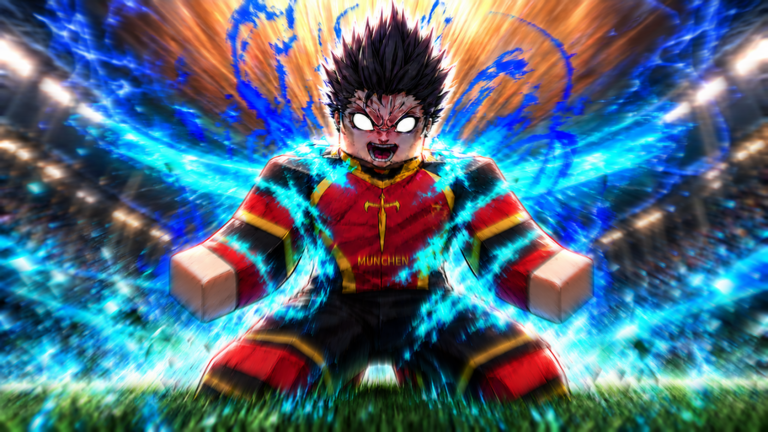
Start Your Blue Lock Career mixes cinematic choices with sudden Live soccer control. If you only memorize arena layouts from other Blue Lock games, you will miss tackles, waste boosts, and hunt endlessly for the code menu. This guide covers Live mode inputs the community relies on, how 2D and 3D decision modes differ from freestyle play, where Settings lives, and what changes between PC, console, and mobile.
Pair this page with Getting Started so controls knowledge arrives after you have a slot and redeemed codes — not during a panicked Second Selection drill.
Live mode: core inputs
When a career segment drops you into Live control, you are responsible for movement, challenging, and finishing under Roblox input constraints.
Space — speed boost
Space triggers a speed boost. Use it to:
- Close a lane on a breakaway.
- Escape a press after a heavy touch.
- Arrive on time for a cross you already telegraphed with a decision scene.
Do not hold boost as a permanent sprint cheat. Timing matters more than spamming. Boost into space you already created with positioning; boosting into a packed box often donates the ball.
F — tackle
F initiates a tackle. Community guidance is consistent on the basics:
- Tackle when you have an angle, not when you are trailing straight from behind with no momentum.
- Whiffed tackles open counters — especially painful in career drills that punish turnovers.
- On offense-focused slots you still need tackle timing for the moments Live mode flips you into defensive recoveries.
If tackle feels unresponsive, check whether you are actually in Live mode or a decision prompt that is waiting for a UI choice instead of a keypress.
Aiming, passing, and shooting notes
Creators (including control-focused tips videos linked from Builds) stress camera discipline:
- Face your passer before you expect a clean lay-off.
- Lead teammates into space rather than passing into their feet under pressure.
- Shoot when your boost lane and body orientation agree; forced shots after a mistimed Space tap are common day-one mistakes.
Exact bind overlays can vary with Roblox device settings. If a key does nothing, open Roblox escape menu bindings and confirm no overlay is eating inputs, then return to the in-game Settings cog for game-specific options.
2D and 3D decision modes vs Live
Career is not Live 100% of the time.
Watch-and-choose narrative
Many scenes only ask you to pick dialogue or strategic options. No amount of Space mashing advances the branch — click or confirm the choice UI.
2D decision mode
2D segments present soccer choices in a flatter presentation. Success depends on reading the prompt and selecting the correct action under time pressure, not on freestyle dribbling mechanics. Treat these like quick-time soccer puzzles tied to your ego identity.
3D decision mode
3D decision mode keeps a more spatial view but still privileges prompted choices over full stick craft. You may see lanes and players, yet the game is grading decision quality more than micro-mechanics.
Why the split exists
Ponder Inc’s career fantasy needs narrative pacing. Constant Live control would turn Selections into a pure mechanics exam; constant QTE would remove the joy of a handcrafted finish. Learning to recognize the mode prevents “my controls are broken” false alarms.
| Mode | What you do | Failure feeling |
|---|---|---|
| Live | Move, boost (Space), tackle (F), aim passes/shots | Missed tackle, wasted boost |
| 2D decision | Pick prompted actions | Wrong choice under timer |
| 3D decision | Spatial prompts / guided choices | Misread lane or option |
| Narrative | Dialogue / career forks | Closed branch, tougher path |
Settings menu location (codes and options)
Codes and many options live in Settings, opened from the cog in the bottom-left after you finish or skip the tutorial. That placement is easy to miss if you are staring center-screen at a match HUD.
Inside Settings you:
- Redeem promo codes (full list on Codes).
- Confirm which career slot receives Skill Points and other slot-targeted rewards.
- Adjust game options that affect readability and input comfort.
If the cog is missing, you are probably still inside the locked tutorial flow — finish or skip it, then look bottom-left again. Getting-started order covers this gate in detail.
PC vs console vs mobile
PC
Keyboard and mouse (or controller on PC) give the clearest access to Space / F muscle memory described above. Watch for browser or overlay hotkeys if you play through a launcher that steals focus.
Console
Console players should expect Roblox’s gamepad mapping layer. Boost and tackle still exist as actions even when the physical buttons differ from keyboard legends. Re-check in-game prompts the first time a Live segment appears after a patch — console fix codes in the wild are a reminder that pad support is actively maintained.
Practical console tips:
- Sit closer to the decision UI; prompt timers feel shorter on a living-room display.
- Confirm Settings with the same bottom-left cog habit — do not assume codes moved to a separate console dashboard.
- If a button does nothing, verify Roblox system settings did not disable the experience’s custom binds.
Mobile
Mobile uses on-screen controls. Boost and tackle appear as buttons rather than Space / F keys. Thumbs cover more HUD, so:
- Lower graphics clutter if prompts are hard to see.
- Practice one Live drill focusing only on boost timing before you add tackle spam.
- Redeem codes in a calm lobby moment; fat-finger typos fail silent strings.
Mobile fix codes appear often in update cycles — another reason to keep Codes bookmarked.
Practice plan that actually sticks
- Finish day-one setup on Getting Started.
- Enter a Live segment and only practice Space boost for two minutes — no tackle spam.
- Add F tackle only when you can approach from an angle.
- Play one 2D and one 3D decision scene without touching Live binds so your brain tags the mode switch.
- Open Settings deliberately, redeem any new codes, and return to career.
- Once controls feel stable, open Builds so your weapons and Flow match how you move.
Common control mistakes
- Boosting the instant you receive the ball every time — predictable and easy to body.
- Tackling from hopeless distance, then blaming lag.
- Ignoring decision UI because you assume every scene is Live.
- Searching for codes on a website NPC that does not exist — use the bottom-left Settings cog.
- Changing devices mid-Selection without re-learning the prompt layout.
Related guides
- Getting Started — Tutorial gate, slot, redeem order.
- Builds — Make Live touches matter with the right kit.
- Career Mode — Why modes switch across Selections and NEL.
- How to Reroll — Spend rolls after you can actually use the weapons you pull.
Master the mode you are in, then spend EgoCoins and rolls on power. Controls literacy is the cheapest Overall upgrade in Start Your Blue Lock Career.
Frequently Asked Questions
Quick answers to the most common questions.
What does Space do in Live mode?
Space triggers a speed boost. Use it to explode into space or recover position — do not hold it as a permanent sprint.
What does F do?
F initiates a tackle. Challenge when you have an angle; whiffed tackles gift counters in career drills.
Why are my Live keys ignored?
You may be in a 2D/3D decision or narrative prompt. Confirm the UI mode before assuming binds are broken.
Where is Settings for codes?
After the tutorial or skip, open the cog in the bottom-left corner to redeem codes and adjust options.
Do console and mobile use Space and F?
Those legends are keyboard-centric. Console and mobile map boost and tackle to gamepad buttons or on-screen controls with the same actions.